SHELLOUS AI · OFFICIAL ENGLISH USER GUIDE
Shellous AI 0.7.0 — Complete User Guide
A step-by-step visual guide to SSH and SFTP, device pairing, ChatGPT integration, server permissions, Windows AI Agent access, and troubleshooting. All server names and accounts in the illustrations are examples. AI access requires explicit user authorization.
Get started Original Persian guide
1. What is Shellous and where should you start?
Shellous AI is a Windows application combining traditional SSH terminal sessions and SFTP file management with optional, explicitly authorized AI-assisted operations. You can connect to servers without signing in to a cloud account. Cloud MCP and Windows AI Agent access are additional features, not prerequisites for basic SSH/SFTP.
1.1 Three independent permission layers
- SSH/SFTP: Your existing server credentials authorize ordinary terminal and file operations.
- Shellous account and device pairing: Connects a trusted Windows device to your account for cloud access.
- AI permissions: Explicitly decide which SSH sessions or Windows actions an AI assistant may use.
1.2 Before you begin
Use a supported Windows computer, the Shellous AI application, valid SSH credentials if you plan to access a server, and a compatible AI client if you want MCP integration. For cloud features, an internet connection and a Shellous account are required.
2. Installing the setup and portable editions
2.1 Windows installer (EXE)
- Download the official Shellous setup package.
- Run the installer and follow the Windows prompts.
- Launch Shellous AI from its shortcut and verify the version shown by the application.
2.2 Portable ZIP
- Download the portable archive.
- Extract the complete archive to a folder you control.
- Run the executable from the extracted folder, keeping its supporting files together.
2.3 Microsoft Store edition
Open the Shellous Microsoft Store listing and install the available package. The Store manages updates for this edition. Do not mix files from different editions or versions.
3. Understanding the interface and main buttons
The left sidebar contains saved Server Profiles. The main area contains the Welcome screen, terminal tabs, and SFTP file views. The title bar may also display Shellous AI Account, AI Connections, and Windows AI Permissions.
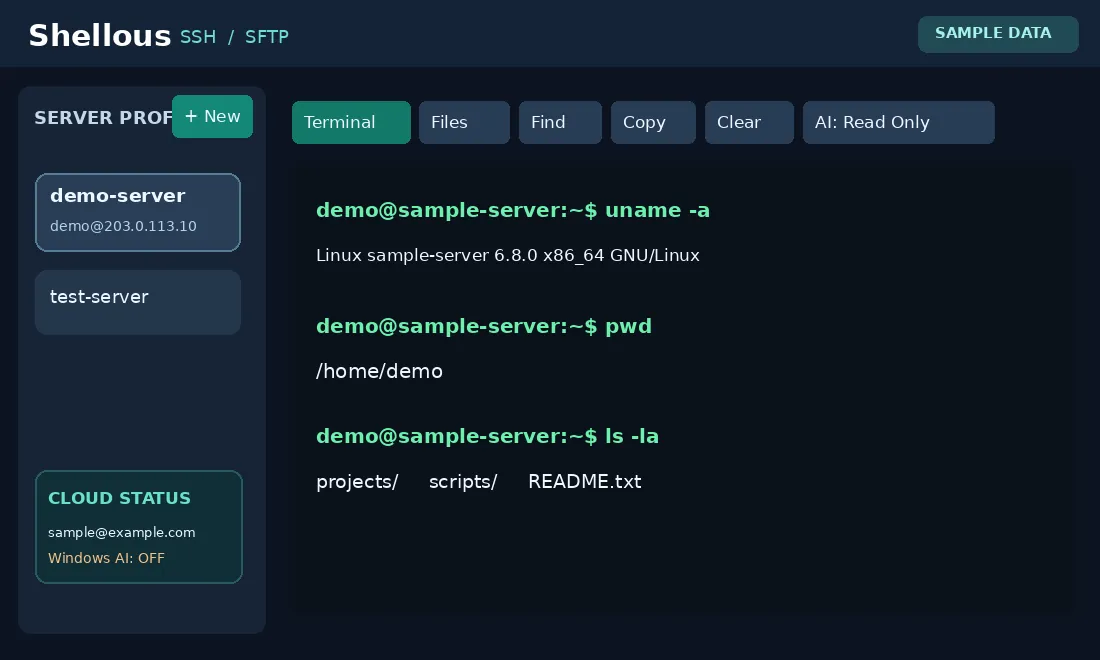 Shellous main interface — instructional illustration from the original guide.
| Control | Purpose |
|---|
| + New | Create a server profile. |
| Connect / Disconnect | Open or close an SSH session. |
| Edit / Delete | Change or remove a saved connection profile. |
| Terminal / Files | Switch between shell access and SFTP file management. |
| Shellous AI Account | Sign in, pair or disconnect this Windows device. |
| AI Connections | Configure a local MCP bridge for compatible clients. |
| Windows AI Permissions | Allow or restrict AI actions on this computer. |
4. Creating a server profile and connecting over SSH
4.1 Add a connection
- Choose + New in Server Profiles.
- Enter a recognizable profile name and the server hostname or IP address.
- Enter the SSH port (usually 22 unless your administrator configured another port) and username.
- Select the authentication method and provide the password or private-key file as appropriate.
- Save the profile, select it and press Connect.
- Verify the server host-key fingerprint using a trusted source before accepting it.
4.2 Edit or delete
Use Edit to update saved connection details or Delete to remove the local profile. Deleting a profile does not delete the remote server or its files. Never paste a password into the private-key path field.
5. Terminal sessions and tabs
After connecting, use the Terminal tab to enter commands. Start with read-only commands such as whoami, pwd and ls -la. Select output to copy text; use the application's paste control or the supported Windows paste shortcut to insert commands.
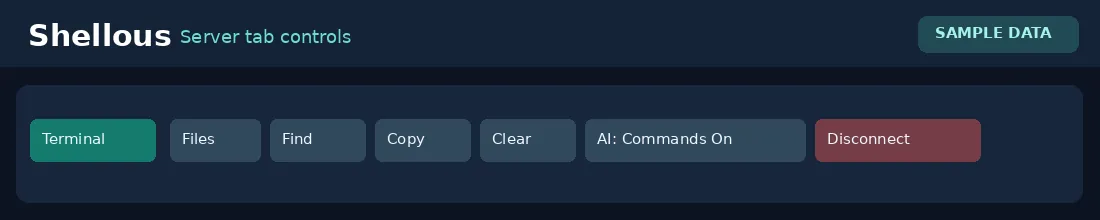 Terminal and tab workflow — original guide illustration.
Open additional connections in separate tabs. Close the relevant tab or select Disconnect when finished. Be careful with rm, service restarts, permission changes, and commands requiring administrator privileges: they affect the actual remote system.
6. Managing files with SFTP
6.1 Open SFTP and download
- Connect to a server and open Files.
- Navigate to the desired directory on the remote side.
- Select a file, choose Download, and verify the destination on your computer.
6.2 Upload files
- Navigate to the intended server directory.
- Select the local file or files and choose Upload or the supported copy operation.
- Check transfer progress and confirm the resulting file on the server.
6.3 File-management tools
Use refresh, parent-directory navigation, new folder, rename, copy, and delete as available in your version. SFTP Delete changes actual remote files. Back up important data before overwriting or removing anything.
7. Shellous account and Windows device pairing
7.1 Sign in and pair this computer
- Launch Shellous AI on the Windows computer.
- Click Shellous AI Account.
- Select Sign in / Pair this device.
- Complete sign-in in the browser at shellous.youtf.ir.
- Review the pairing request and approve only your own trusted device.
- Return to Shellous and confirm the account/device status.
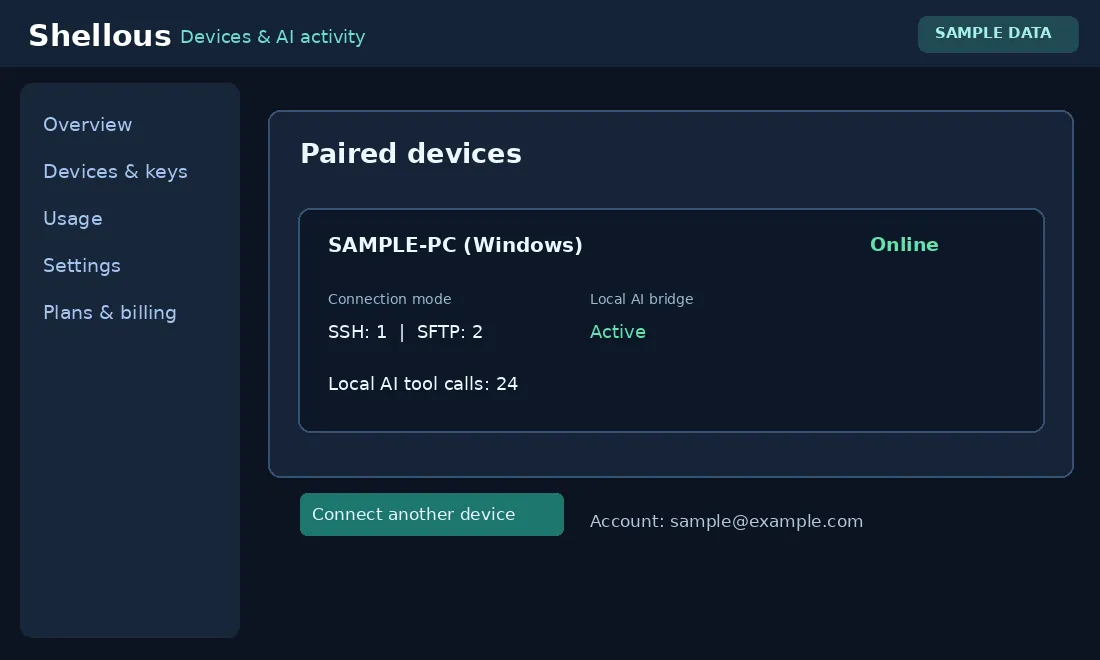 Account sign-in and device pairing — original guide illustration.
7.2 Sign out or switch accounts
Use the Account window to sign out or switch accounts. You can also revoke an authorized device in the web dashboard. Device pairing alone does not grant unlimited Windows AI permissions.
8. Connecting Shellous to ChatGPT — step by step
8.1 Confirm which connection you are using
The tested integration is the connected Shellous application using its official MCP endpoint. A separately named development ZIP or plugin is not necessarily the same tested connection.
8.2 Connect in ChatGPT
- Pair your Windows device to the Shellous account as described in section 7.
- Open ChatGPT's apps or connectors settings and locate the authorized Shellous integration.
- Use the official MCP URL where a custom MCP server address is requested.
- Complete the browser authorization with your Shellous account.
- Refresh available tools or open a new chat if the tools are not yet visible.
- Begin with a read-only request such as “List my paired Shellous devices.”
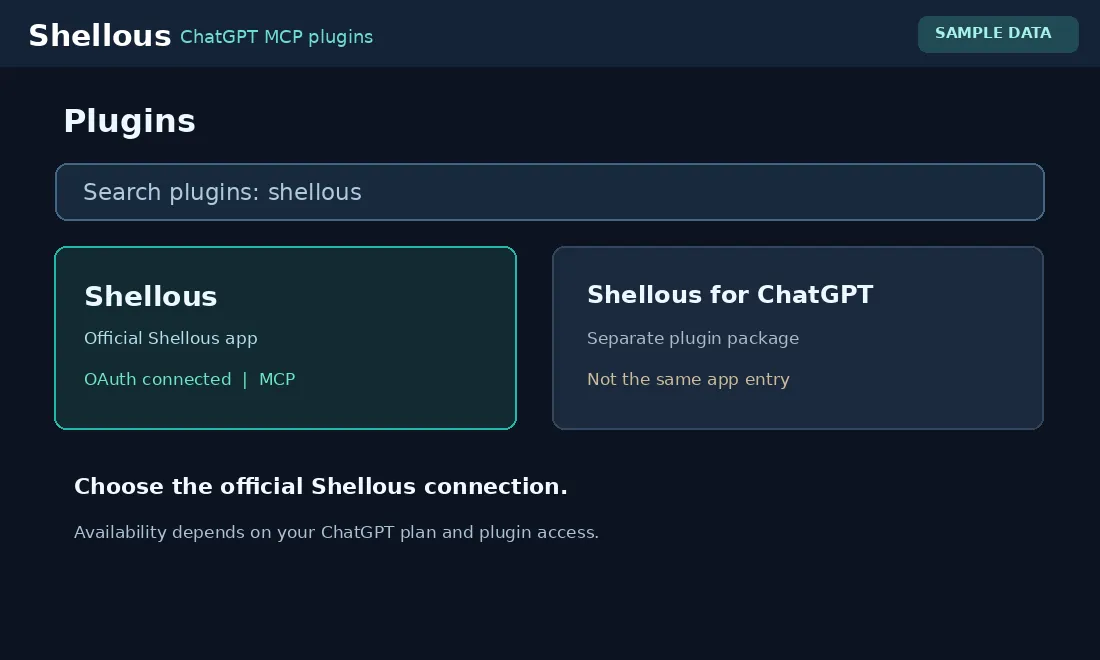 ChatGPT connection walkthrough — original guide illustration.
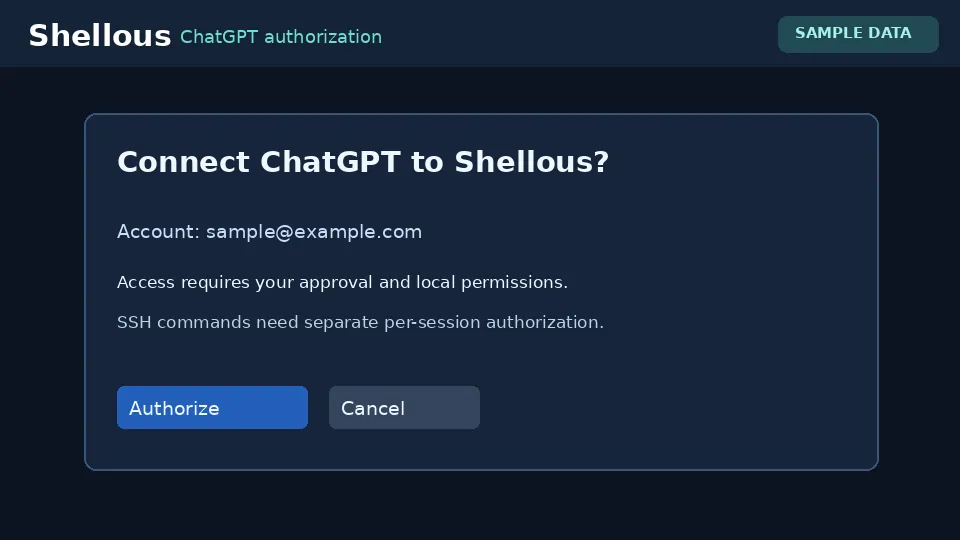 Authorization and available tools — original guide illustration.
8.3 Official MCP endpoint
https://shellous.youtf.ir/mcp. Use HTTPS and the account authorization flow; do not place API secrets in a public page.
8.4 If Shellous does not appear
Check that the correct app is connected, authorization completed, the device is online, and the tools have refreshed. App availability and configuration options depend on your ChatGPT account and environment.
9. Cloud MCP versus local AI Connections
| Connection | Where it runs | Typical use |
|---|
| Cloud MCP | https://shellous.youtf.ir/mcp | Authorized cloud AI clients such as ChatGPT. |
| Local AI Connections | Local loopback address shown by Shellous AI Connections, commonly 127.0.0.1 with a session token | Compatible AI clients running on the same Windows computer. |
Do not confuse a local session token with a cloud account credential. Use the endpoint displayed by the relevant connection screen and do not expose either token publicly.
10. Granting AI access to an SSH server
10.1 Each server is authorized separately
- Connect to the intended server from Server Profiles.
- In that server's connected tab, select AI Access.
- Check the displayed server name and select the appropriate permission.
- Yes: grant the approved command/read scope for that session; No: keep access limited to the read-only/file scope indicated by the app; Cancel: deny or revoke access.
10.2 Test without changing anything
Ask your AI assistant to list authorized SSH sessions, then list a harmless directory. Confirm the exact device and session before any write or command operation.
10.3 Running a server command
Only after granting the necessary AI Access should you request an explicit command. For example, pwd or uname -a is a safer first test than a configuration change. The AI must use an authorized session, not an arbitrary server.
11. Granting AI access to this Windows computer
11.1 Recommended: restrict access to one folder
- Open Windows AI Permissions in Shellous AI.
- Enable Windows AI access, which is off by default.
- Use Browse beside Restricted folder and choose a dedicated test directory such as
C:\AI-Test. - Enable only the operations necessary for your task; leave unrelated permissions off.
- Test with a harmless read operation before permitting writes or command execution.
11.2 Understanding the permission switches
Permissions can distinguish status inspection, file listing/reading, file changes, process inspection, command execution, and graphical interaction. FullAccess is broader than a folder-limited workflow; use it only when required and understand the risks.
11.3 Screen and mouse access
Screen captures and keyboard/mouse actions are separate sensitive capabilities. Enable them explicitly when the application exposes them and only for the time needed. Closing the app or disabling Windows AI access stops those local permissions.
12. The 20 official MCP tools
12.1 Device discovery (2 tools)
| Tool | Purpose |
|---|
shellous_list_devices | List paired devices and online status. |
shellous_device_status | Read detailed status for one device. |
12.2 SSH and SFTP (4 tools)
| Tool | Purpose |
|---|
shellous_list_sessions | List AI-authorized SSH sessions. |
shellous_list_files | List remote directory entries. |
shellous_read_file | Read an authorized remote file. |
shellous_exec | Execute a command on an authorized SSH session. |
12.3 Windows Agent (14 tools)
The Windows Agent tool group covers status, file-system navigation and reads, file changes, process inspection, PowerShell/CMD execution, and authorized screen or input interactions. Availability depends on the installed version and the permission switches you enable. The complete tool names and descriptions appear in the connected Shellous tool catalog; never assume that pairing automatically enables all fourteen operations.
13. Ready-to-use ChatGPT prompts
Use these examples in a ChatGPT conversation where Shellous is connected. Check the target device and session before any action that changes data.
- “List my paired Shellous devices. Do not change anything.”
- “Show the status and current permissions of my Windows device.”
- “List the SSH sessions explicitly authorized for AI.”
- “On the authorized test server, run
pwd and explain the output.” - “List files in the authorized directory, but do not edit or delete them.”
- “Read the specified log file and summarize errors without modifying the server.”
14. Shellous web dashboard and keys
Sign in at shellous.youtf.ir. The dashboard organizes account access and activity:
| Area | What it shows |
|---|
| Overview | Account, devices and service summary. |
| Devices & keys | Paired devices, online status, revocation and available keys. |
| Usage | Cloud MCP request allowance and activity. |
| Settings | Account and supported service settings. |
| Plans & billing | Plan information and any currently available upgrade options. |
Standard cloud allowance is 10,000 MCP requests per month unless your account has a different assigned quota. SSH and SFTP operations do not consume the cloud MCP request allowance unless a cloud MCP tool is called. An upgrade marked “Coming Soon” is not an available purchase.
15. Security, privacy and revoking access
15.1 Essential rules
- Install official builds and verify host identity before trusting an SSH connection.
- Prefer limited server accounts rather than root or Administrator.
- Authorize AI only for the exact server or Windows task you intend.
- Keep passwords, private keys, tokens and recovery codes out of screenshots and prompts.
- Review paired devices and revoke anything unfamiliar.
15.2 Can Cloud MCP access my data automatically?
No: cloud account sign-in and device pairing do not, by themselves, grant unrestricted access to Windows files or arbitrary SSH sessions. The connected agent and the corresponding permissions must be enabled. Any data returned by an authorized tool may be visible to the connected AI client; review its privacy settings.
15.3 Three immediate ways to stop AI access
- Disable Windows AI access in the application.
- Revoke AI Access on the relevant SSH session or disconnect it.
- Revoke the paired device or connected client in the Shellous web dashboard.
16. Troubleshooting
| Problem | Checks and actions |
|---|
| SSH connection fails | Check hostname, port, firewall, SSH service, username and authentication method. |
| Incorrect password | Retry in the same tab, verify Password versus Keyboard-interactive, and check private-key paths. |
| Host-key warning | Verify the new fingerprint through a trusted channel; do not blindly accept it. |
| SFTP permission denied | Check remote folder permissions and the account's read/write rights. |
| Device does not appear online | Verify the Shellous app is running, signed in and paired, and that internet access is available. |
| ChatGPT tools missing | Verify the correct Shellous connection, complete authorization, refresh tools, and reopen the chat. |
| Windows AI access denied | Enable the relevant Windows AI Permissions explicitly and check folder restrictions. |
| Cloud quota reached | Check the Usage dashboard and your assigned monthly allowance. |
17. Frequently asked questions
Can I use SSH without a Shellous account?
Yes. Basic SSH/SFTP operations are independent of cloud account sign-in.
Does connecting ChatGPT automatically give it control of my PC?
No. Device pairing and Windows Agent permissions are separate steps.
Must I approve AI access for each SSH server?
Yes. Authorization is scoped to the specific session.
Can I revoke access later?
Yes. Disable Windows AI permissions, revoke session AI access, or disconnect/revoke the device.
Does Cloud MCP count ordinary terminal commands against my quota?
Only cloud MCP tool calls consume cloud MCP requests; ordinary direct SSH/SFTP use does not.
18. Final checklists and glossary
18.1 SSH checklist
- Shellous AI is running.
- A server profile has valid hostname, port, username and credentials.
- The SSH connection is established and a read-only terminal command works.
- Optional SFTP file listing or a harmless test transfer succeeds.
18.2 ChatGPT checklist
- Windows device is paired to the correct Shellous account.
- The official Shellous MCP connection is authorized in ChatGPT.
- Tools are visible and the target device is online.
- Each required SSH session has explicit AI Access approval.
- Windows AI Permissions are enabled only when needed.
18.3 Glossary
SSH: Secure Shell remote terminal. SFTP: SSH File Transfer Protocol. MCP: Model Context Protocol, used to expose tools to compatible AI clients. Pairing: Linking a device to your account. AI Access: A session-specific authorization. Restricted folder: A directory boundary for permitted Windows file operations. Quota: The account's cloud MCP request allowance.